
Advanced Odoo UI
Odoo Data Model Guide
Techneith offers a comprehensive Odoo Data Model module that lets you explore entity-relationship diagrams, model fields, and relations directly inside your Odoo instance. This guide walks you through installation and usage.

+

Odoo Data Model Installation
Step 1: Module Verification
Install the module on your Odoo and follow the steps given below to verify your module
1.1 Copy the License Key you received from Techneith on your email
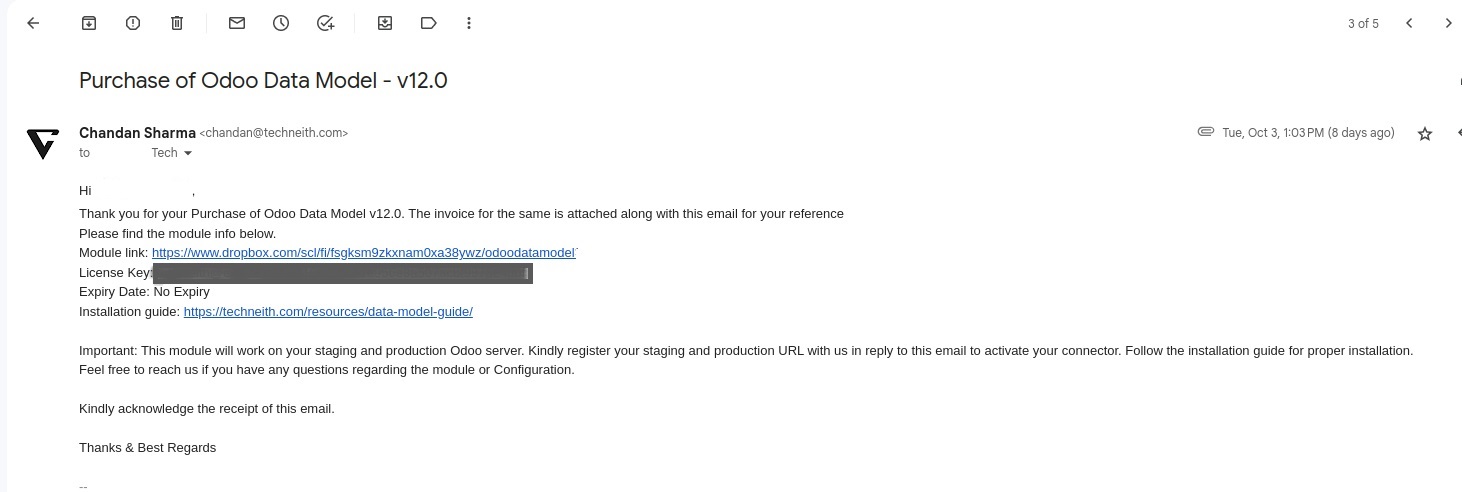
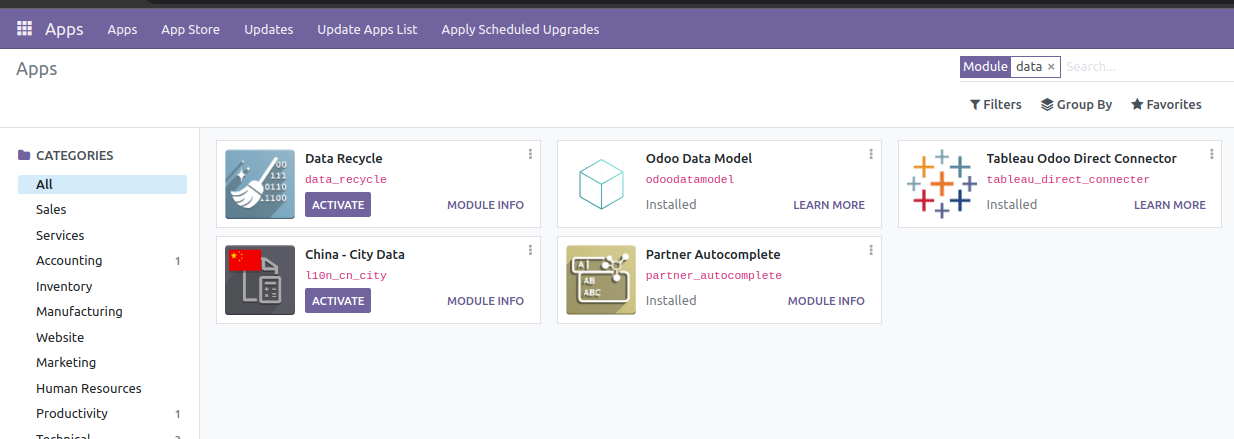
1.2 Head to your Odoo and make sure you have installed the Odoo Data Model Module. Once you have installed the module go to the Settings page.
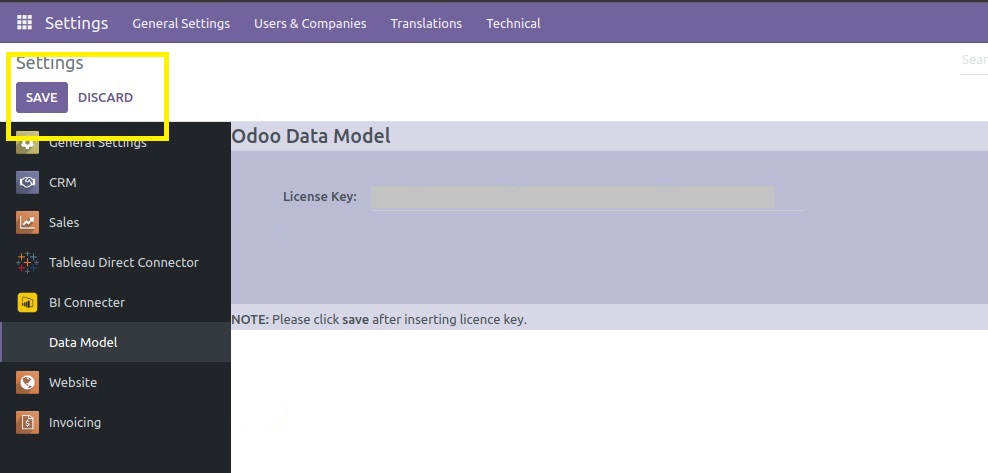
1.3 Click Odoo Data Model on the left panel (this will be available only after Odoo Data Model Module is installed on your Odoo)
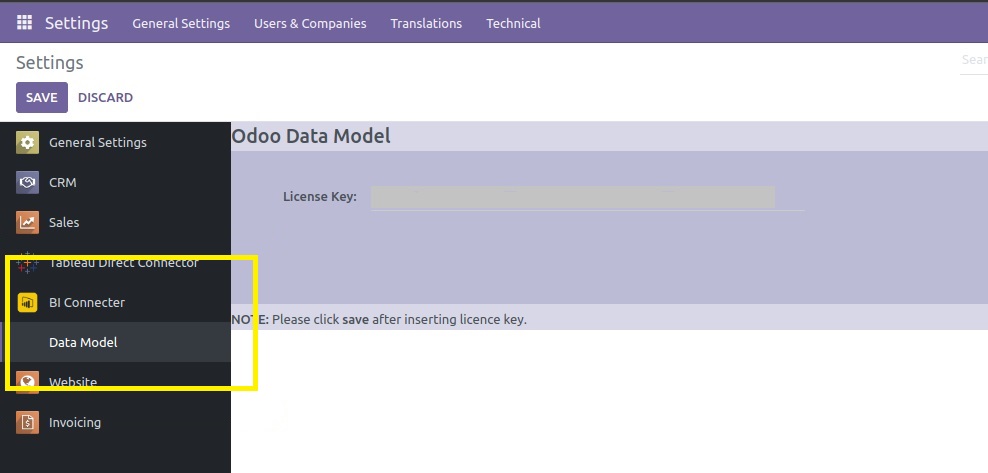
1.4 Paste your License Key in the License Key field (was copied in Step 1.1). Then click Save and then Generate Token.
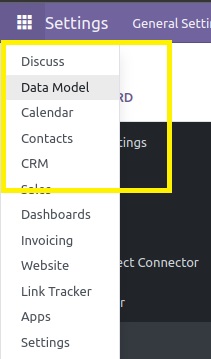
1.5 Head to your Odoo Menu and Click on Odoo Data Model menu entry.
You can now use Odoo Data Model ~by Techneith
How to Use Odoo Data Model
1
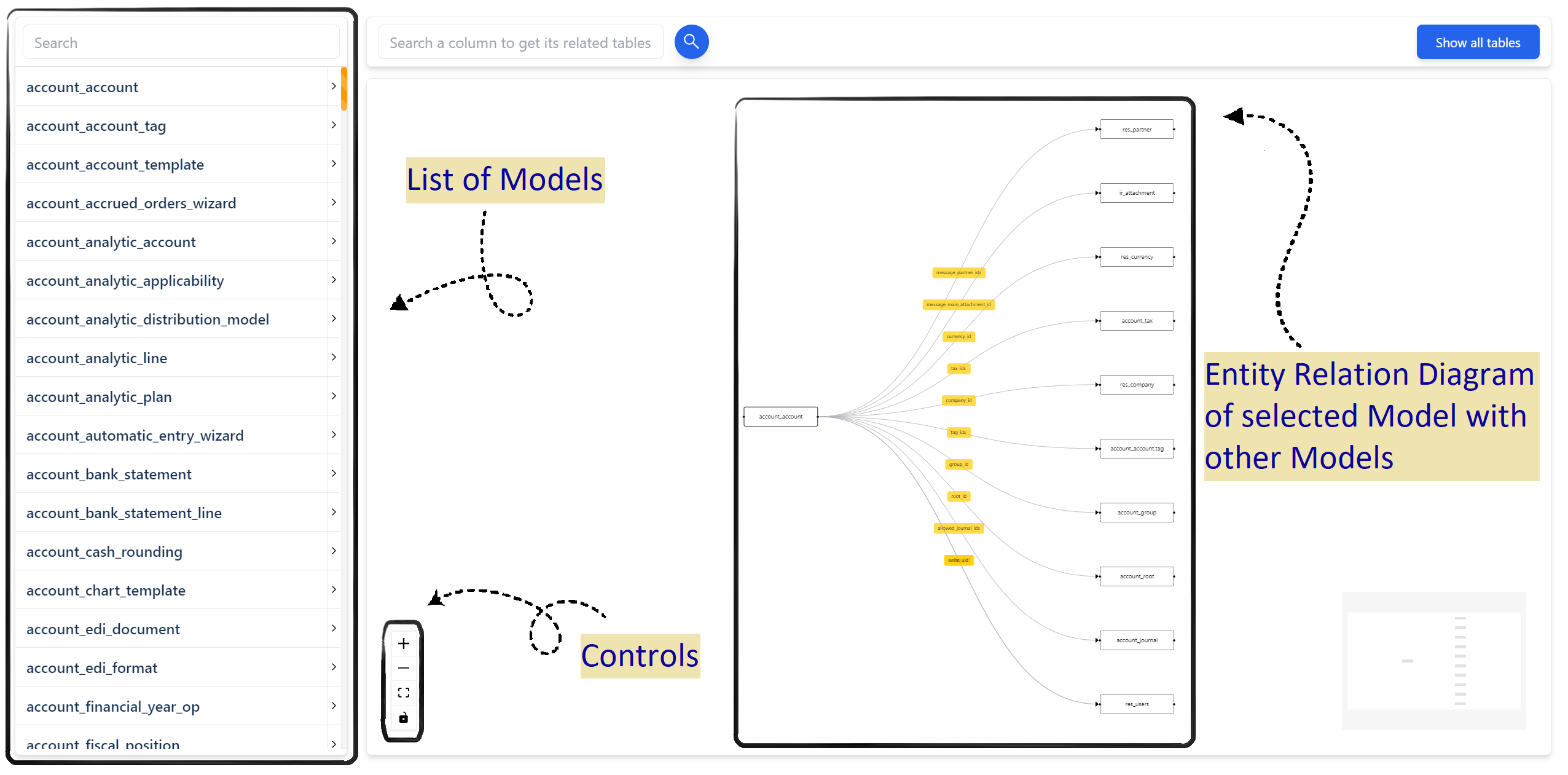
- Left side section of the screen shows list of all models with search bar placed on the top.
- Right side section shows a chart with relation diagrams, a minimap and a control panel.
2
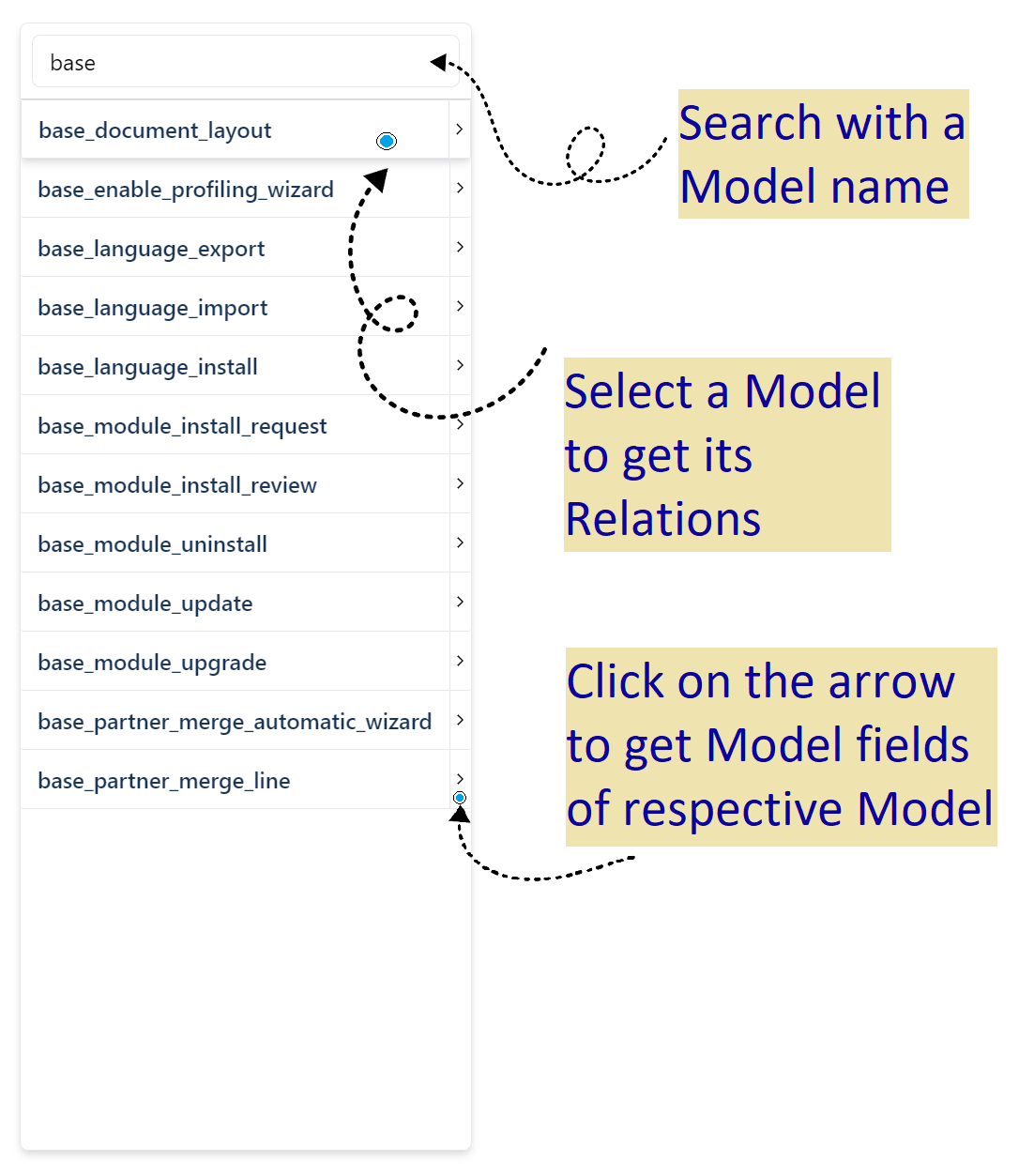
- Type a model name on the searchbar on top of model list or scroll down to find a model in the list.
- Click on the model name to get its relation with other models in a beautiful entity relation chart.
- Click on the arrow next to model name to get list of all fields inside that model.
3
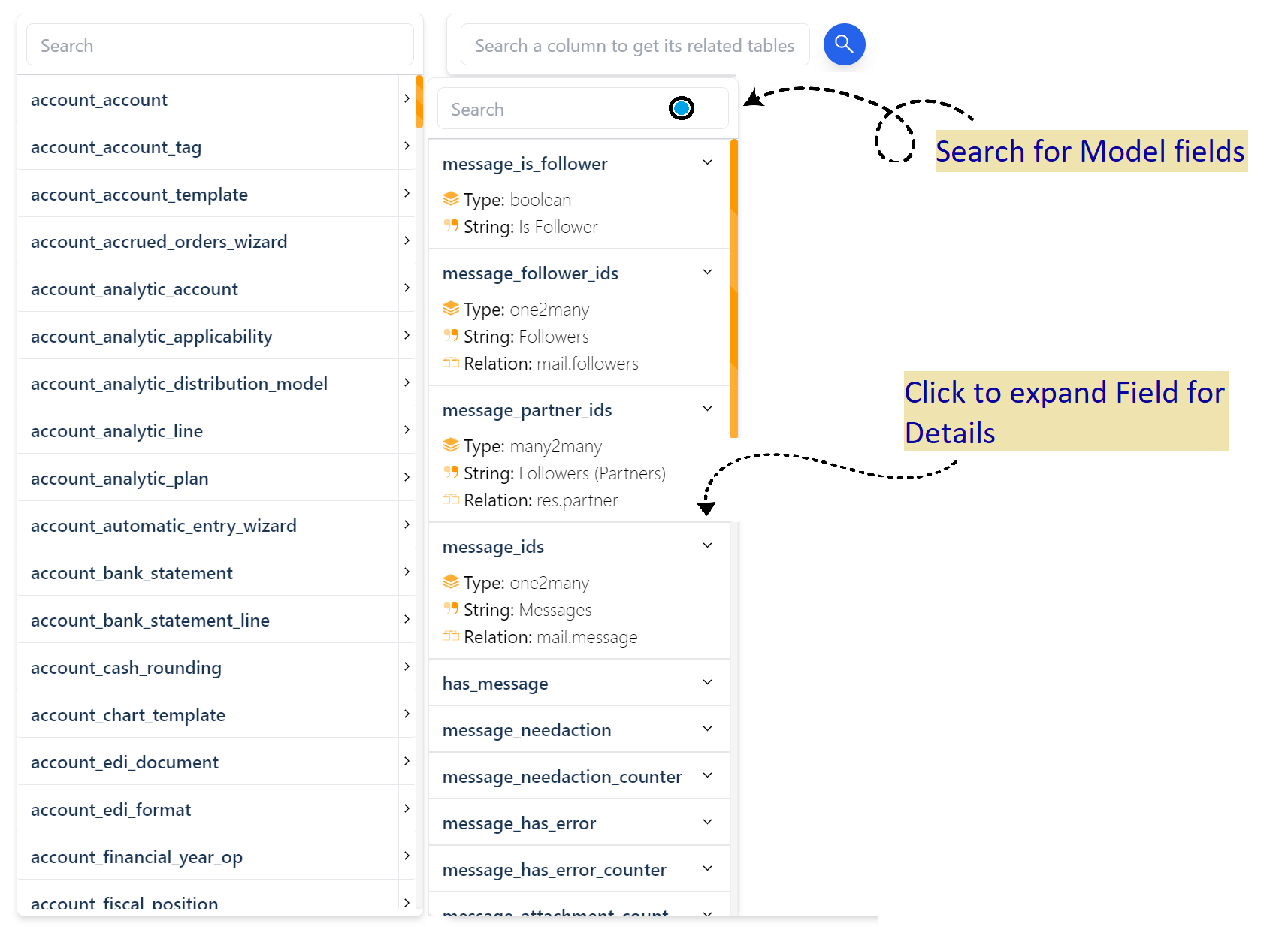
- Type a field name in the searchbar on top of list or scroll manually.
- Click on the field name to get its detailed information.
4
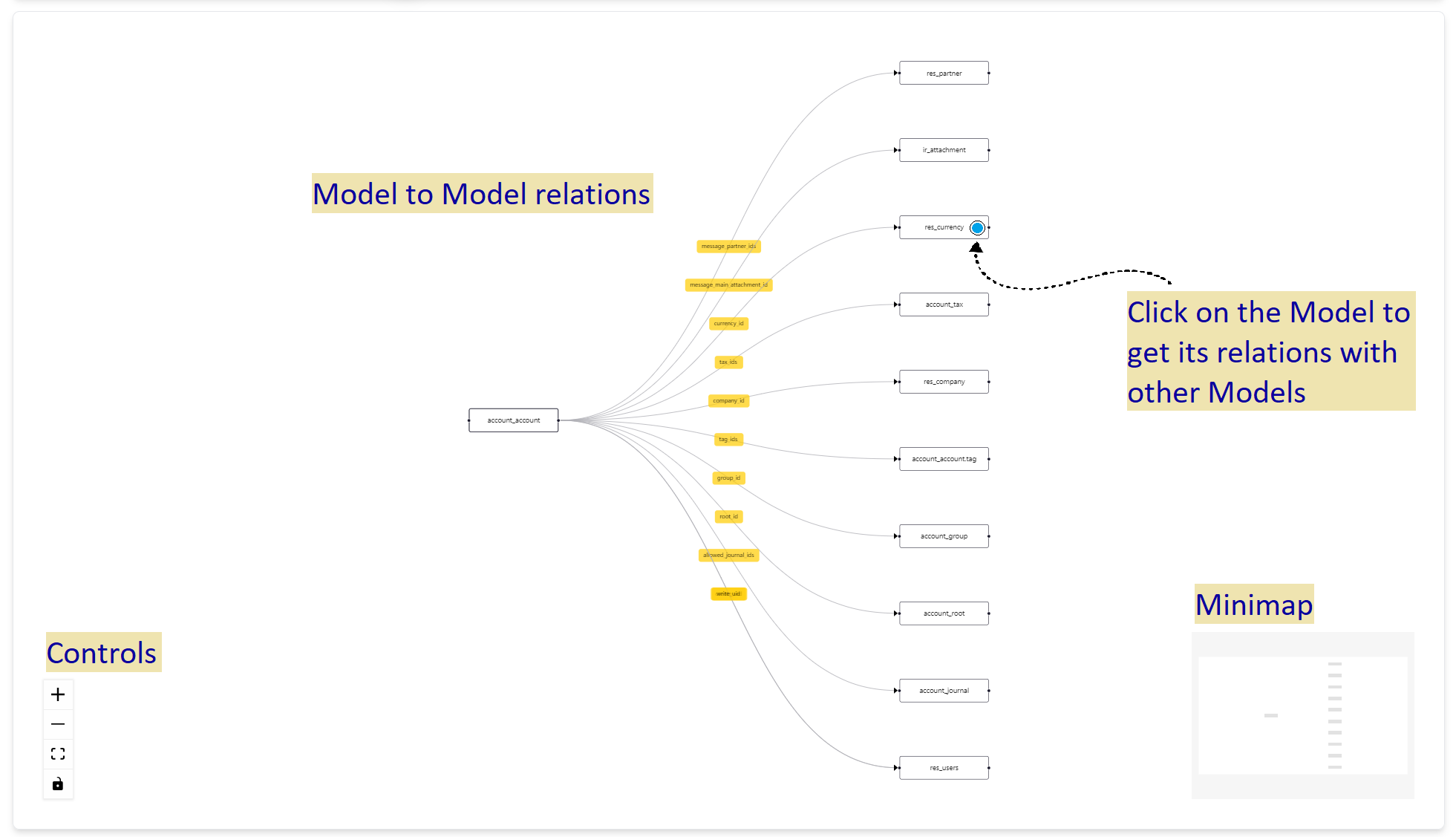
- Use control panel to center, zoom-in, zoom-out or lock controls on the ER diagram chart.
- Click on a node to get the nested relations of clicked model with other models.
5

- Use the searchbar on top to search a field name and get list of models related to it.
6
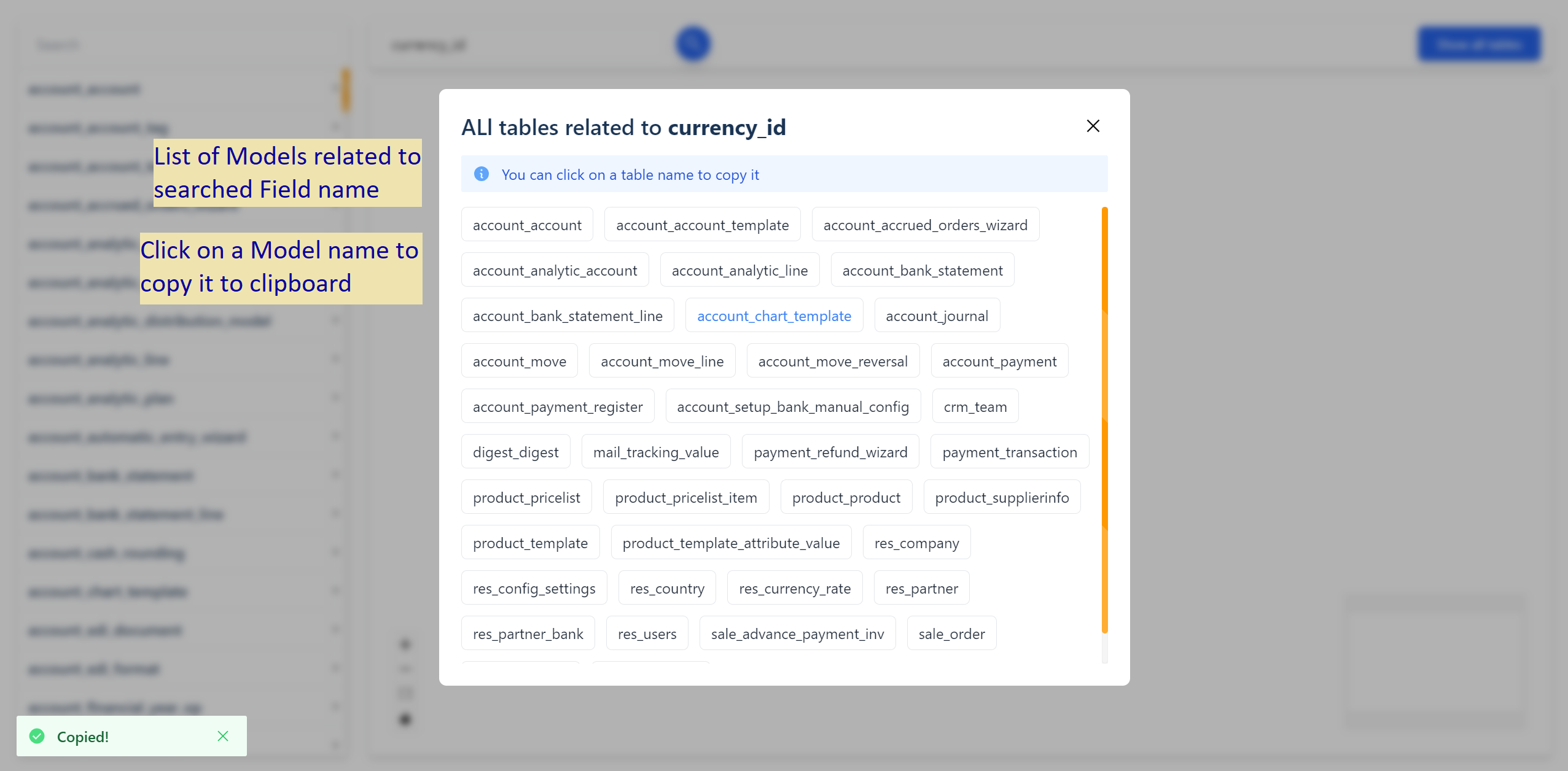
- Click on a model name to copy it so that it's easier to search it to get its relations.
Need Help with Odoo Data Model?
Our team is ready to assist you with installation, customization, or any questions.